
Placing notes on documents
Users and signers are able to place notes on documents during the setup & signing process. This feature must be enabled during the setup process and gives signers the flexibility to communicate comments, clarifications, or context directly on the document without impacting the actual document.
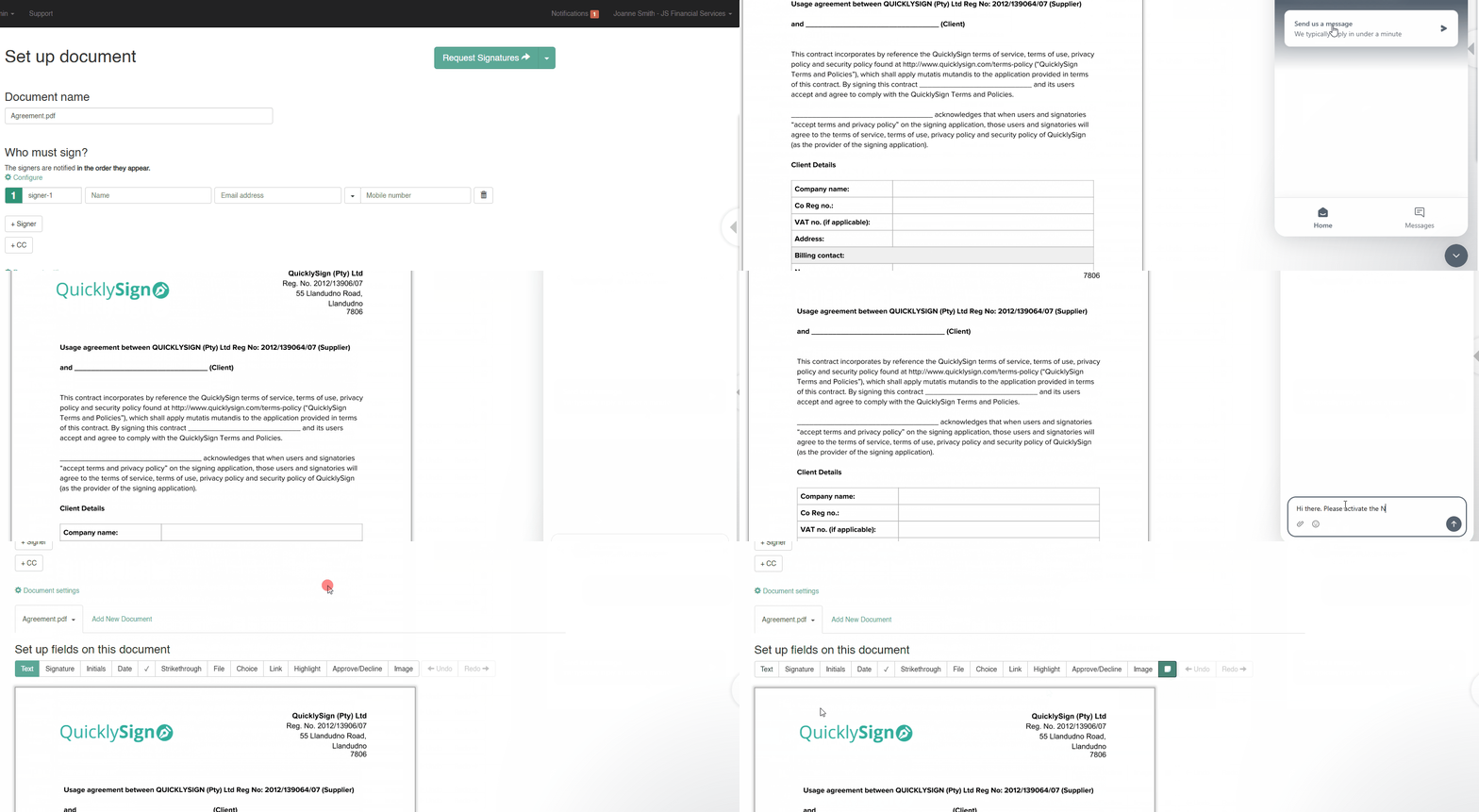
Enabling Signer Notes
- Signer Notes must be enabled during document setup.
- If not enabled, signers will not have the option to add notes.
- If not available during setup, please contact our Solutions Team via the in-app chat or Support@quicklysign.com.
Public vs Private Notes
- Each signer can choose whether their note is:
- Public: Appears on the final document for all parties to see.
- Private: Visible only to the sender.


How Notes Appear on the Final Document
- On completion, public notes appear at the end of the document, just before the audit trail.
- Private notes remain exclusive to the sender to view within their QuicklySign account.


Important Considerations
- Notes do not trigger real-time notifications to the sender.
- If immediate feedback or adjustments are needed, signers should:
-
Decline the document using the option at the bottom (feedback can be provided here to the sender),
or
- Contact the sender directly
-
-
Other signers in the workflow will see public notes left by previous signers.
Signer Notes help improve clarity and collaboration within documents, allowing signers to leave contextual comments without interrupting the workflow. Please remember to enable the feature during setup should you wish to make it available to signers too.